Squid Data Hub · Eplan integration
Eplan integration
Does your Eplan data reach everyone who needs it – and come back when it changes?
Eplan is where your electrical design is authored. Squid Data Hub keeps that design connected: from the schematic in Eplan Electric P8, to the routed cable in Eplan Cable proD, to the production order in Eplan Smart Production – and back again. One current set of devices and cables, without exporting and re-importing spreadsheets between every step.
Why it matters
One round trip, not a chain of exports.
- No re-typing of devices and cables between tools
- One current cable and device list for design, routing and production
- Changes are reviewed before they are applied – nothing is overwritten by surprise
- Engineering data stays useful after the project ends
- Your engineers keep working in Eplan, the way they do today
Eplan products, one data hub
Import. Design. Route. Produce.
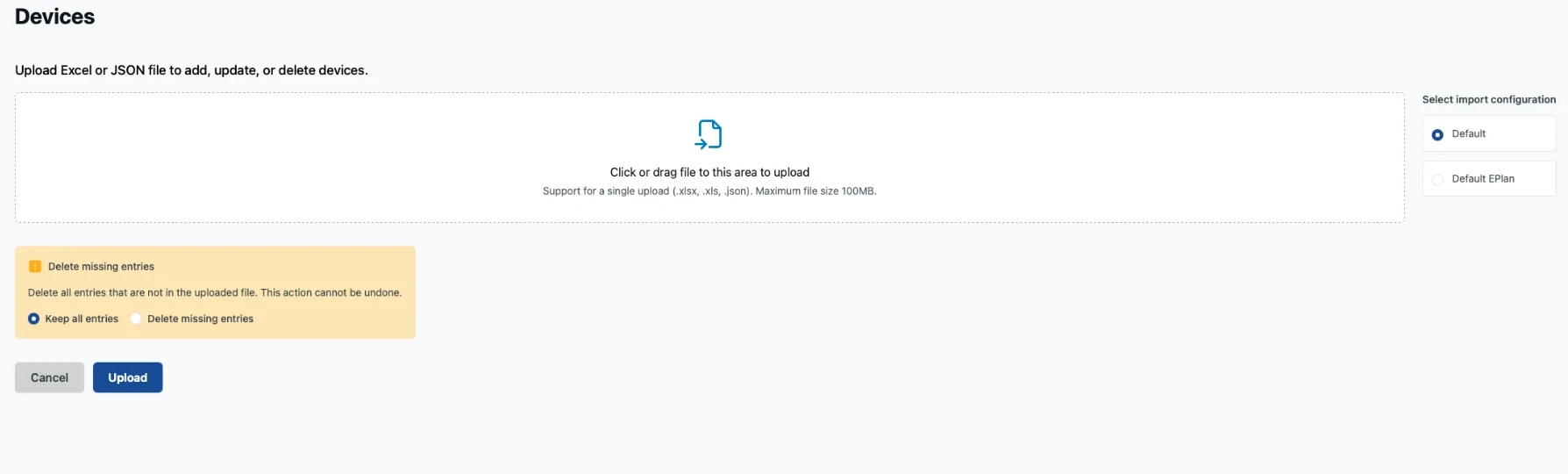
Eplan import
Your Eplan data in, without manual work
Import devices and cables from your Eplan exports with ready-made Eplan mappings – or adapt the mapping to how your projects are set up. Before anything changes, you see what is new, changed or deleted and choose what to apply.
Imports run in the background, so large projects don't block anyone.
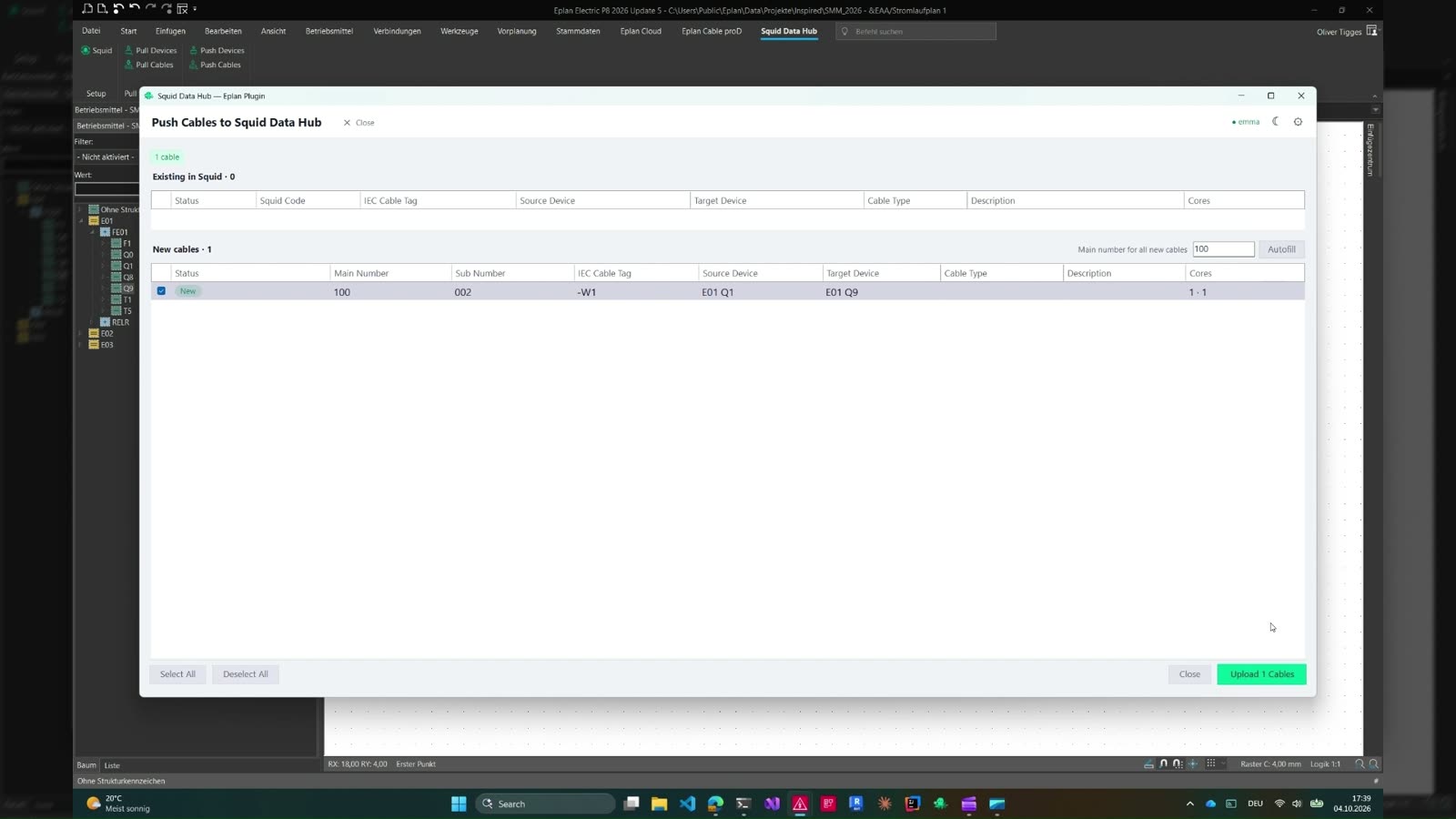
Eplan Electric P8 plugin
Design once, share everywhere
Bring systems, locations, devices, cables and materials from Squid Data Hub into your Eplan project, so engineers design against the structure the whole project agreed on. When the design changes, push devices and cables – including their cores – back to Squid Data Hub. You see a preview first, so nothing is written by surprise.
Squid Data Hub also knows where each device and cable sits in the Eplan project, so everyone else can trace an item back to the design.
Eplan Cable proD plugin
Route with real data – lengths come back
Fetch the project's cables from Squid Data Hub straight into Eplan Cable proD. A cable is created in your 3D project with its wires already connected to the right terminals, ready to route.
Once routed, sync the cable lengths back to Squid Data Hub in one step and review the changes before they are applied. Ordering, cable lists and pull lists then work with real routed lengths, not estimates.
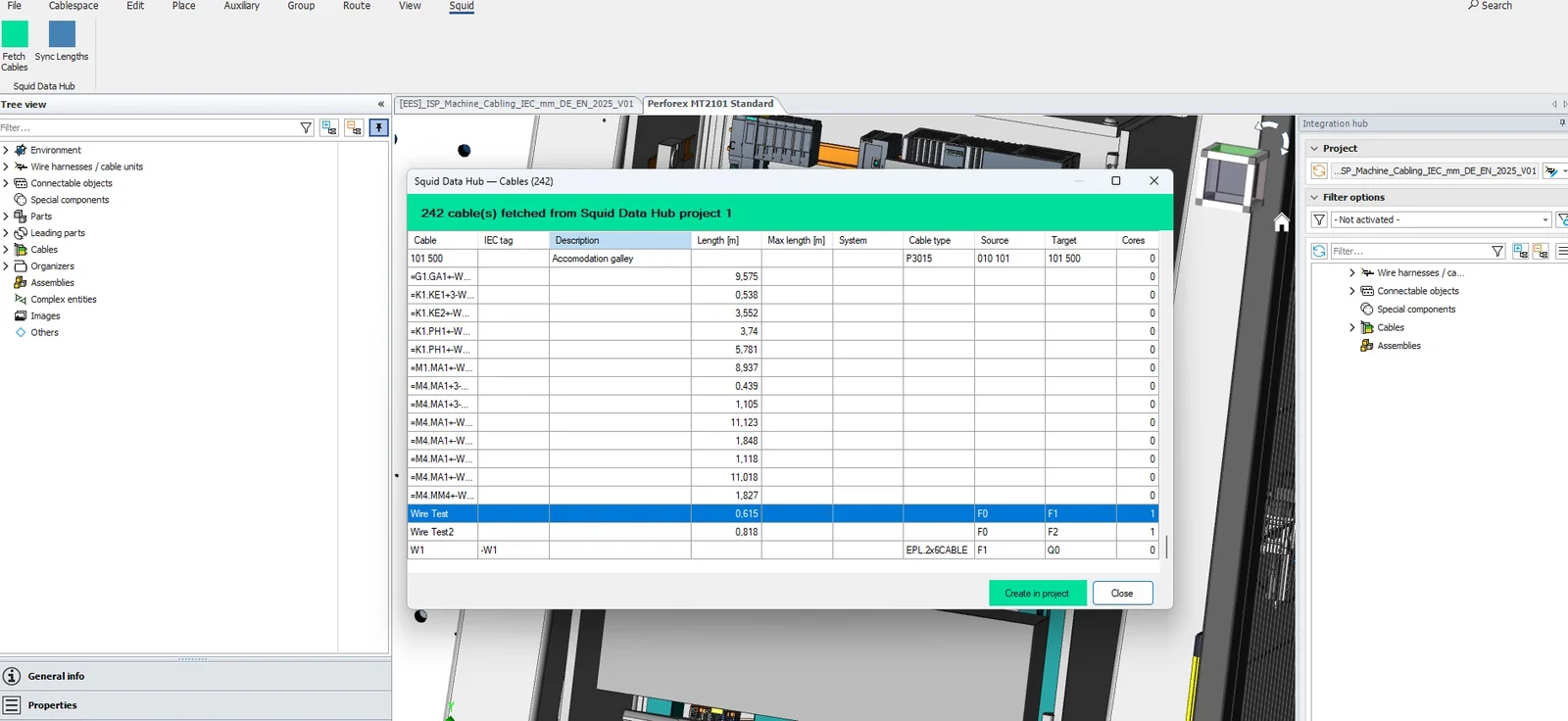
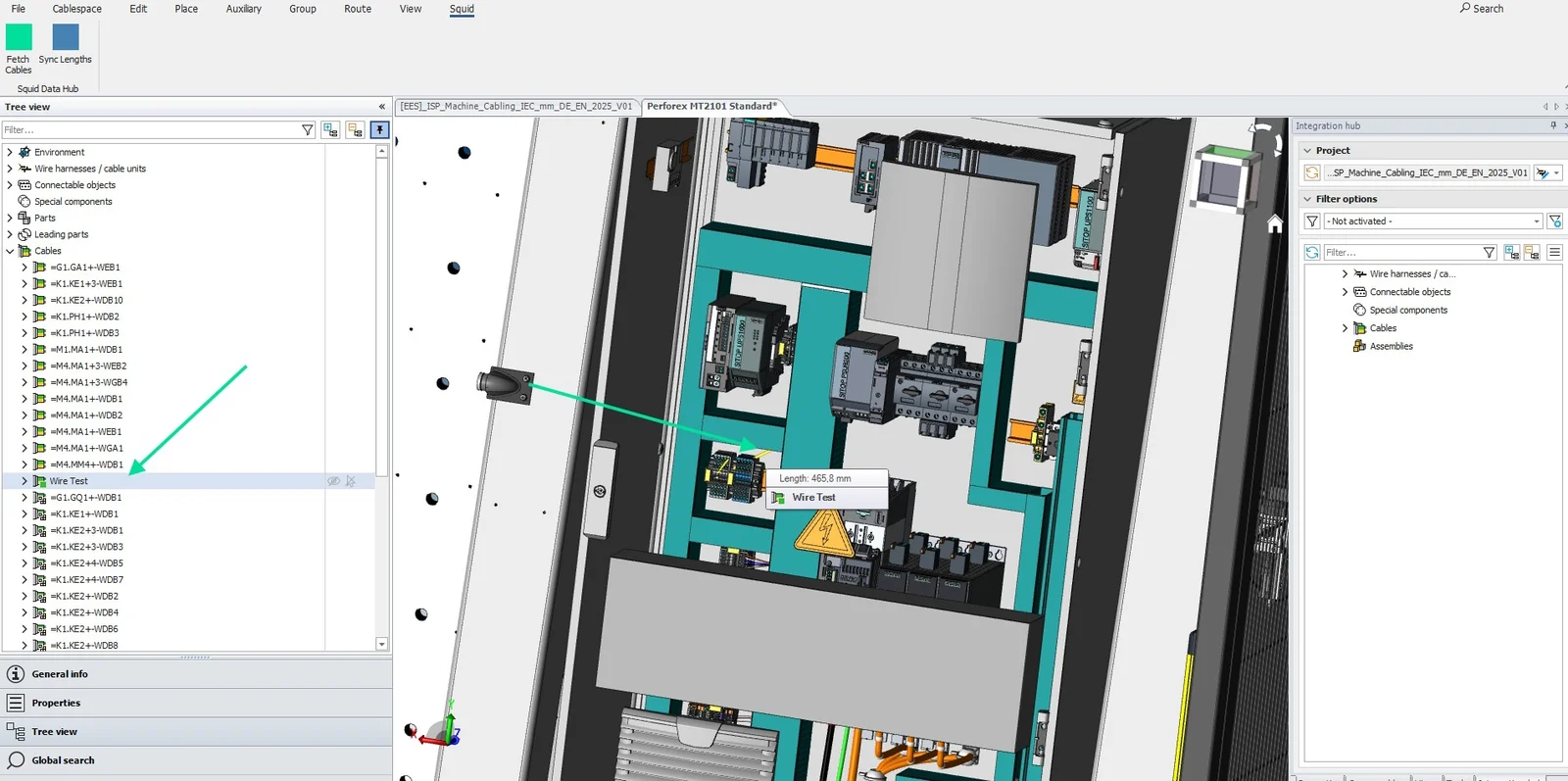
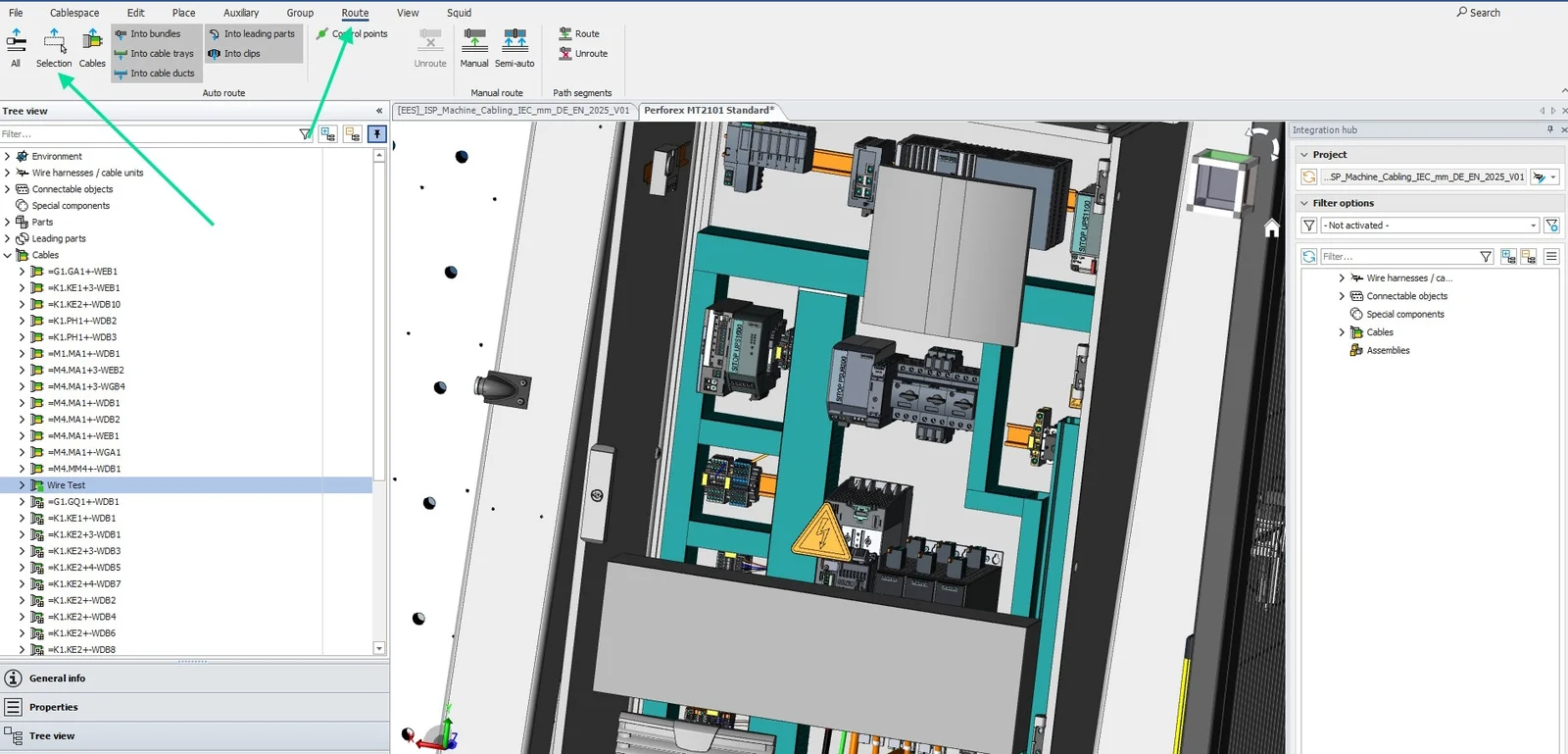
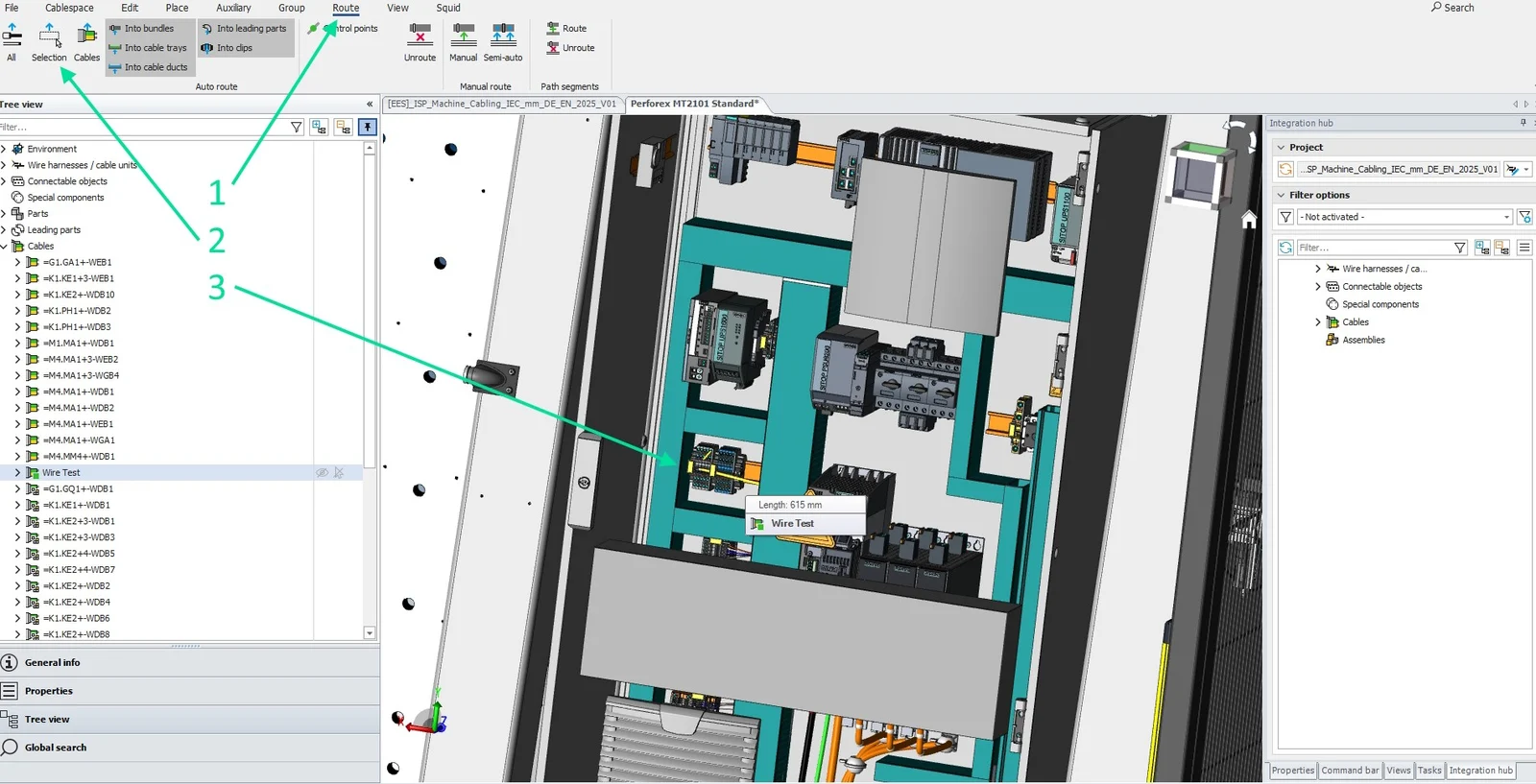
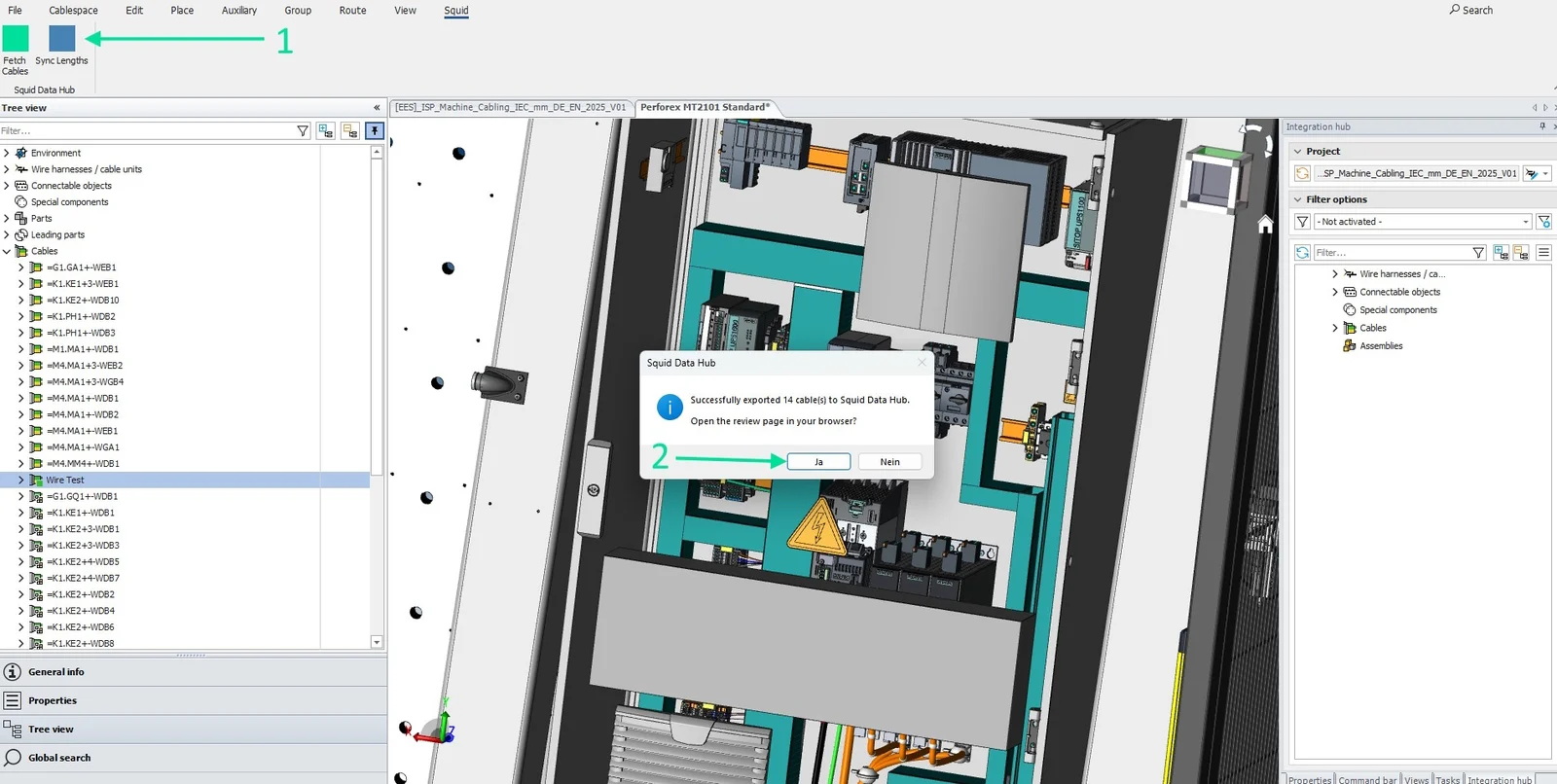
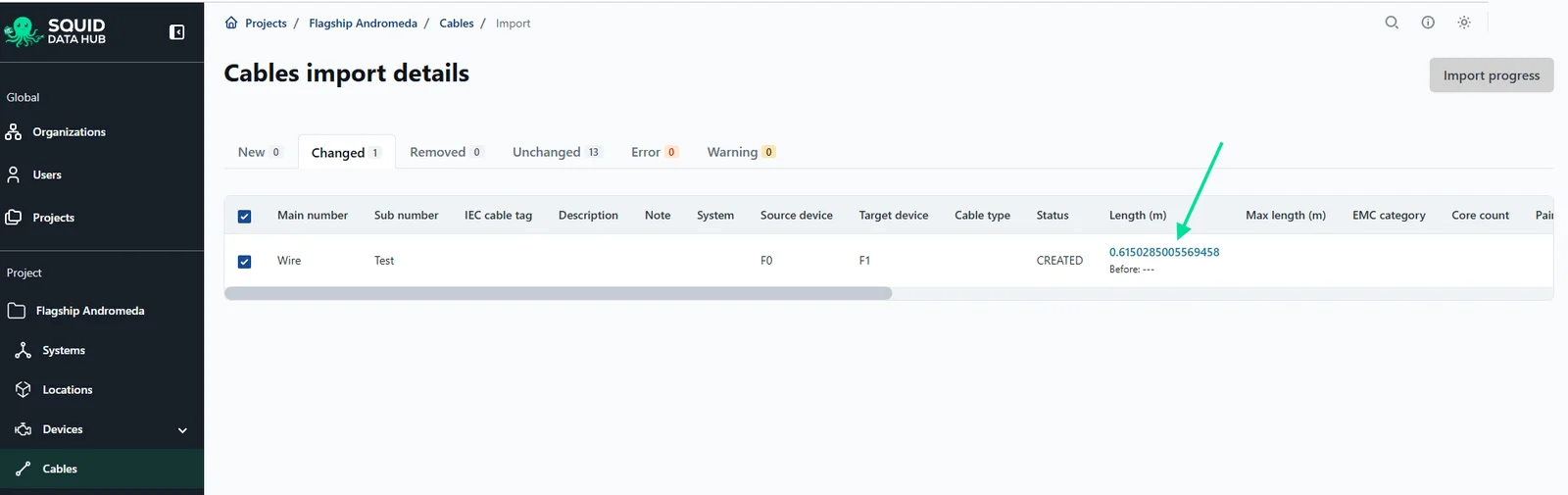
Step 1 of 6 · Fetch the project’s cables from Squid Data Hub and pick the ones to create.
Eplan Smart Production
From cable list to production order
Select the cable assemblies that are ready and send them to Eplan Smart Production as a production order, with their connections. When the work is done, pull the installation status back – the cable status in Squid Data Hub stays current without anyone updating a list by hand.
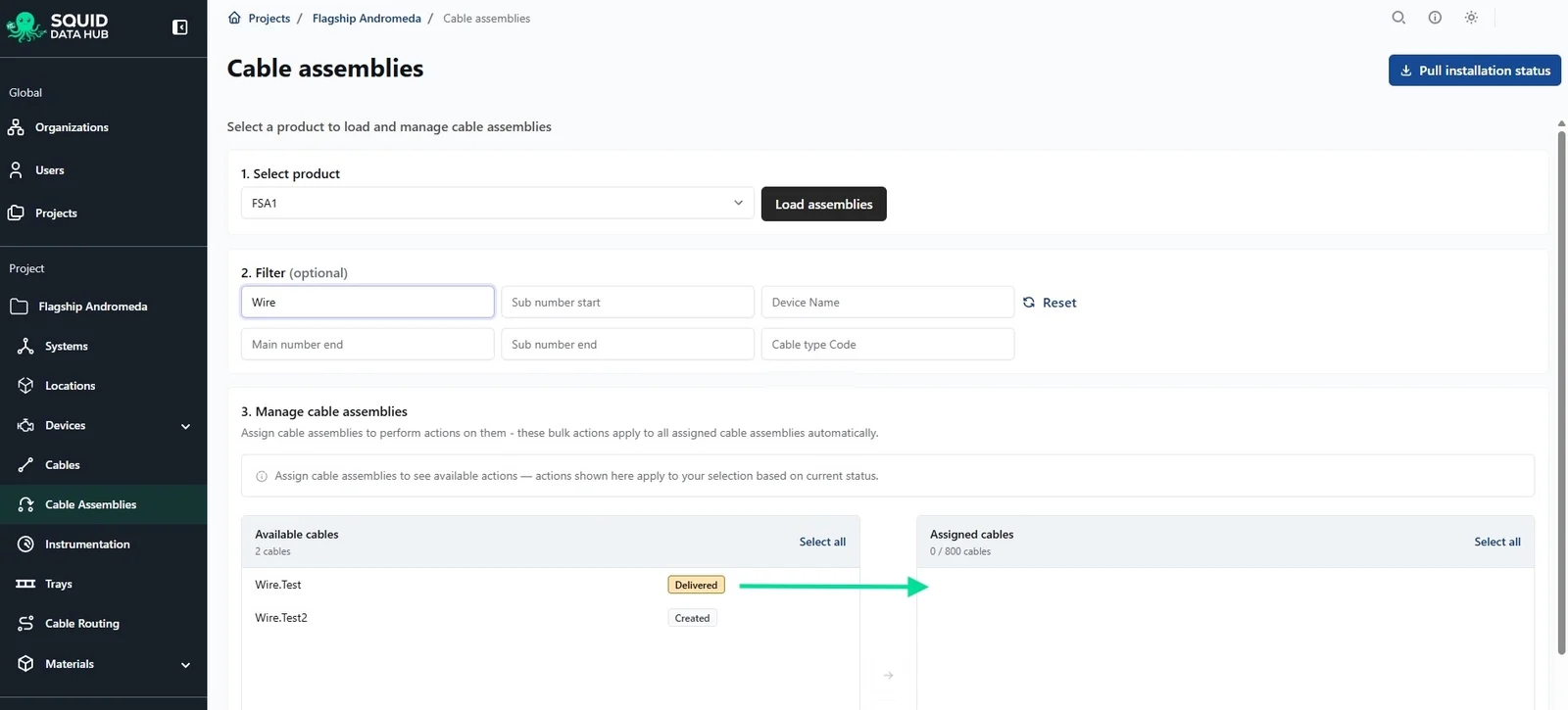
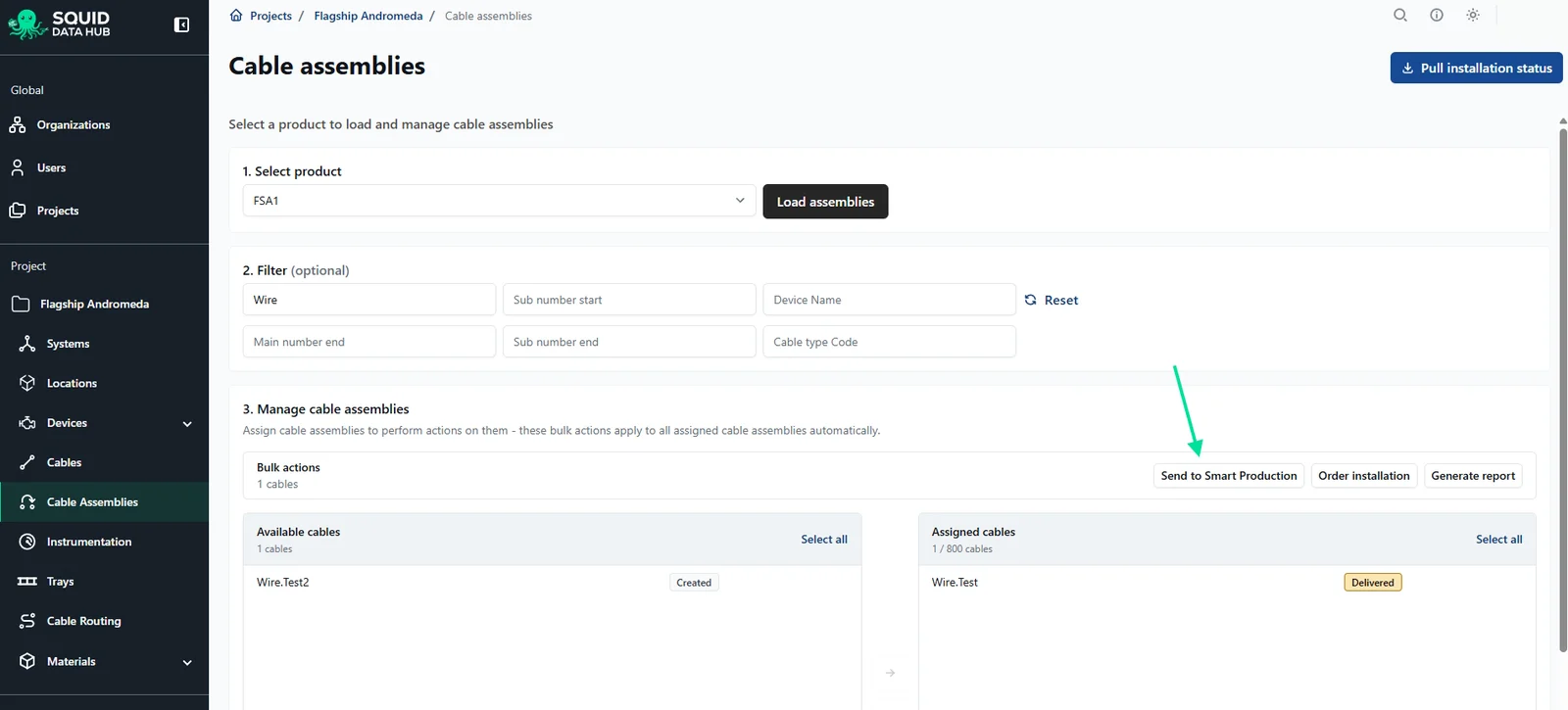
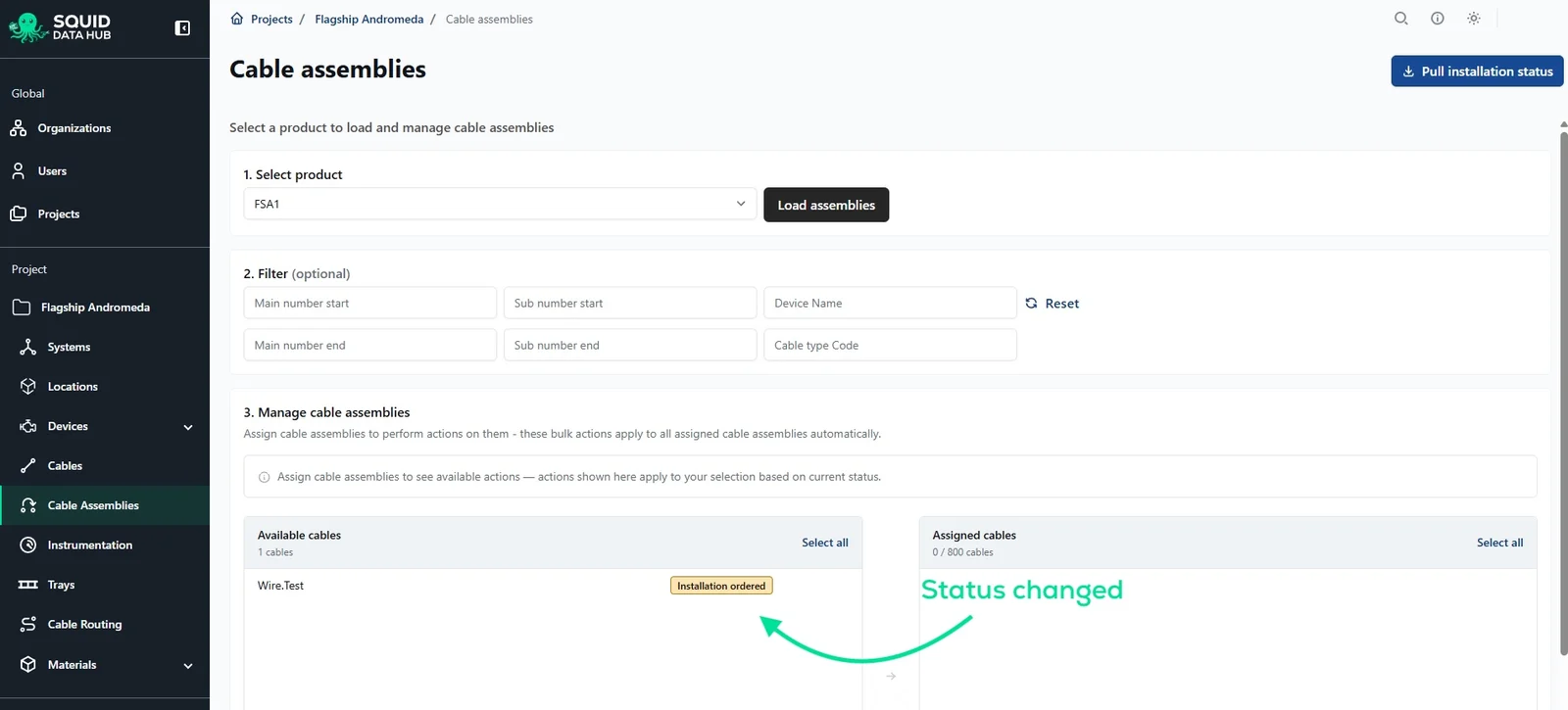
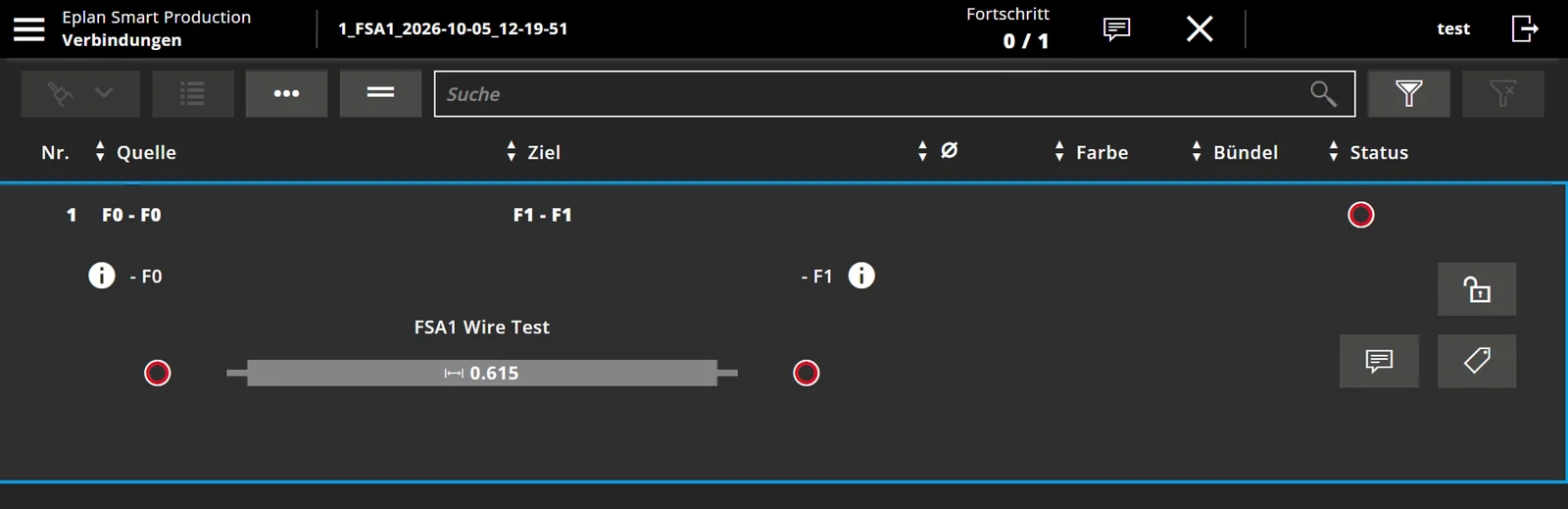
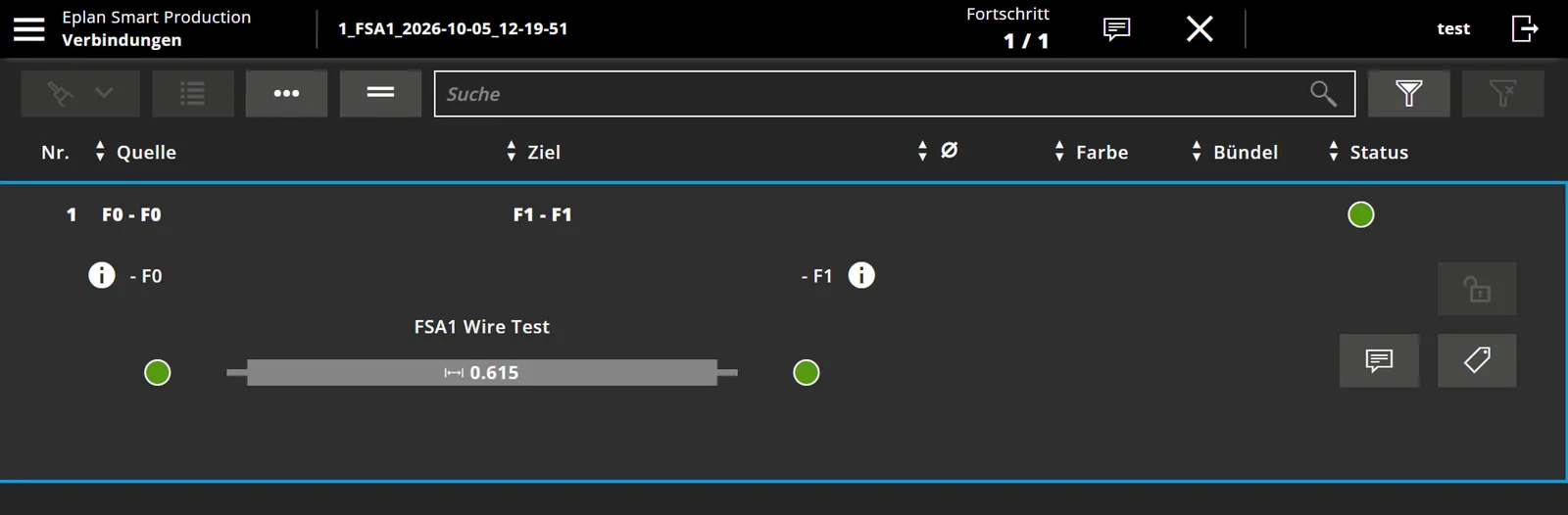
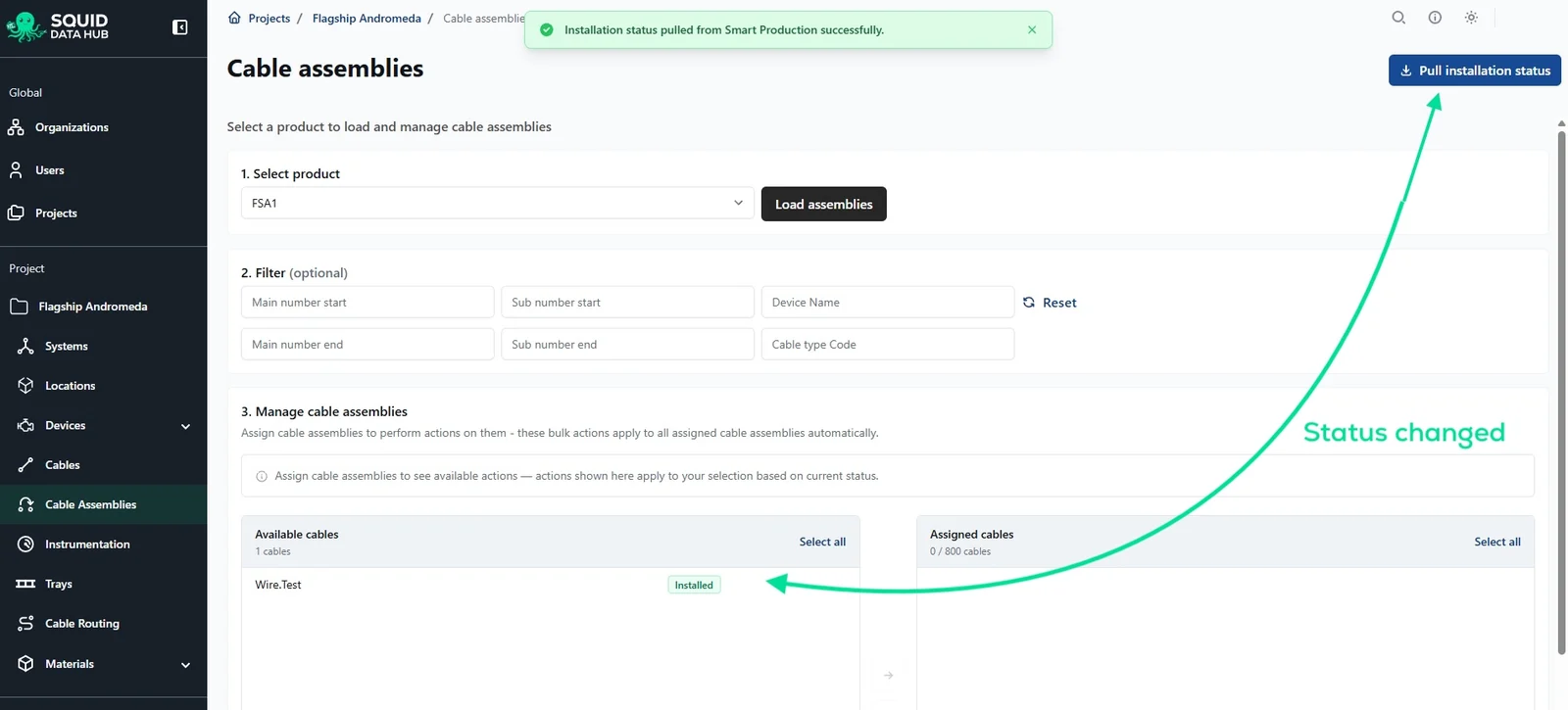
Step 1 of 6 · Select the cable assemblies that are ready.
Inspired Consulting has been an official Eplan Technology Partner since 2025. Beyond Eplan, the Revit plugin brings the same cables into your BIM model.
Who uses it
Electrical engineers · Cable routing and 3D teams · Harness and cable production · Project managers · Installation teams
See your Eplan data connected end to end.
A personalized demo with your Eplan setup, from schematic to routed cable to production order.